 Damda
DamdaWhat Damda does
What Damda does
Project management, messaging, documents, reviews, and meetings from one account. The areas below share the same data, and web and app show the same screen. Anything marked beta is built and opening in stages.
Four things that are genuinely connected
Rather than listing features, these are the places where Damda actually behaves differently from a stack of separate tools.
Projects come with their conversation
Create a project and its channel is created with it. Work talk does not drift into a separate messenger, and when you search months later it surfaces beside the work.
Several people write the same document at once
Meeting notes get written by everyone in the room. The block editor has slash commands, callouts, and embeds, and concurrent edits merge without conflicts.
Build the table you actually need
Add a tab to a project and build a table. Ten column types, calculated formulas, and file attachments — so the work does not move back into a spreadsheet.
Approvals stay inside the product
The team manager writes the team KPI, the final approver confirms it, and individual KPIs then open by themselves. Confirmed goals lock; only progress moves, in rounds.
Projects & tasks
Every view a project needs, over one set of data
Look at the same data as a Gantt chart, a Kanban board, or a table. Switching views never means entering the data again.
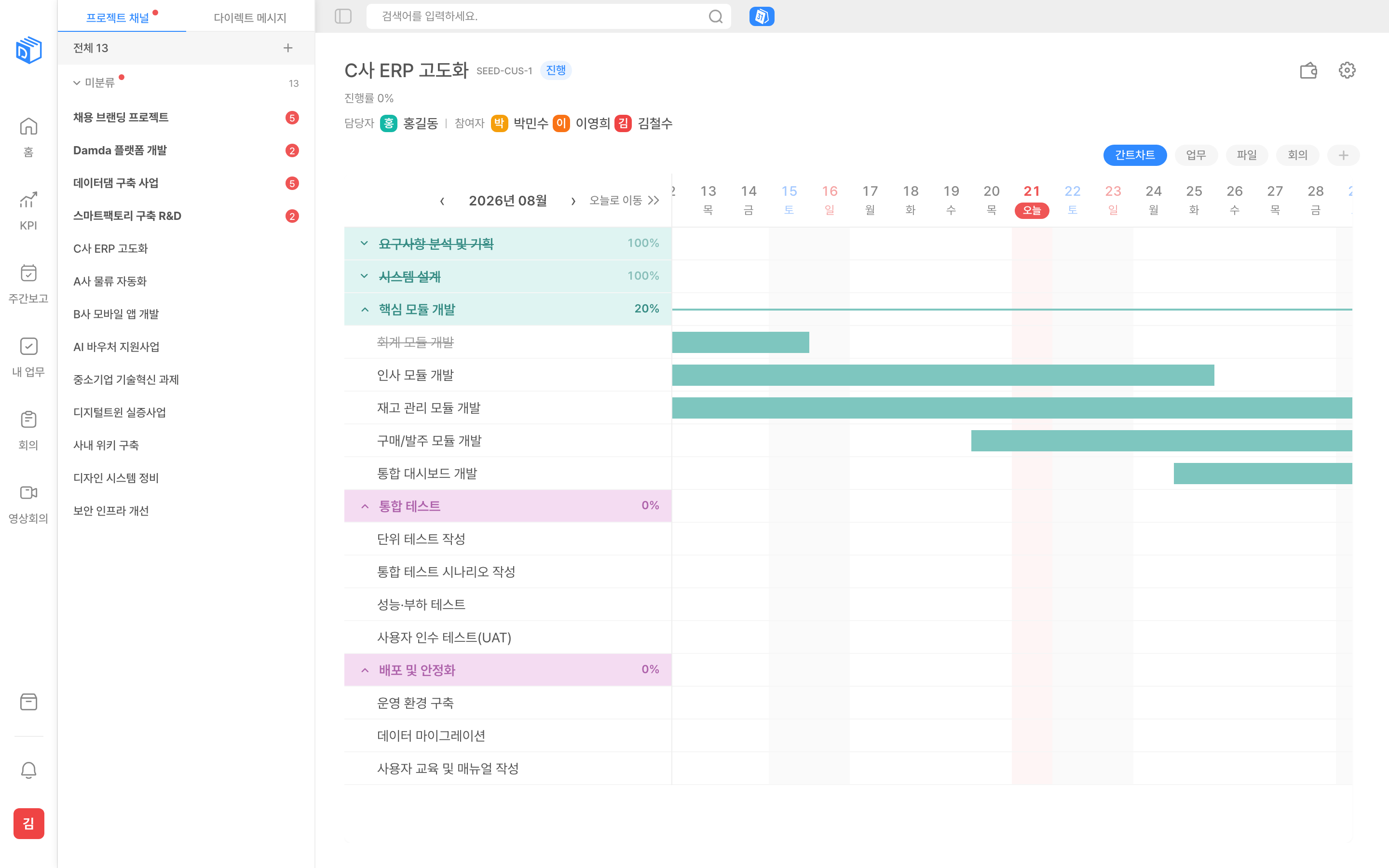
Projects
- A unique code and five states — planning, in progress, review, done, on hold
- Attach more than one team to a project
- Archive finished projects — they leave the list and the data stays
- Browse past projects and their conversations read-only from the archive
Milestones and tasks
- Tasks under milestones, subtasks under tasks — viewed as a tree
- Assign several owners to a single task
- Milestone and project progress recalculate when a task status changes
- Mark business trips, issues, and after-sales work as task attributes rather than scattering them across separate menus
Custom tables
- Add a tab to a project and build a table
- Ten column types — text, number, date, checkbox, select, multi-select, person, link, attachment, formula
- Calculate amounts with a formula column (quantity × unit price)
- Start from a template — bill of materials, budget and spend, risk register, deliverables list
- Up to 30 columns and 5,000 rows per table
Files and contacts
- Attach files to projects and tasks — up to 500 MB per file
- Preview Word, Excel, PowerPoint, Hangul (HWP), and PDF in the browser with nothing installed
- Turn 3D drawings around in the browser — STL, STEP, IGES
- Expand a STEP assembly into its parts, and measure lengths on the spot (mm)
- Keep the client contact list on the project it belongs to
Conversations
Work talk stops leaking into another app
Create a project and its channel comes with it. Search later and the conversation and the work turn up in the same place.
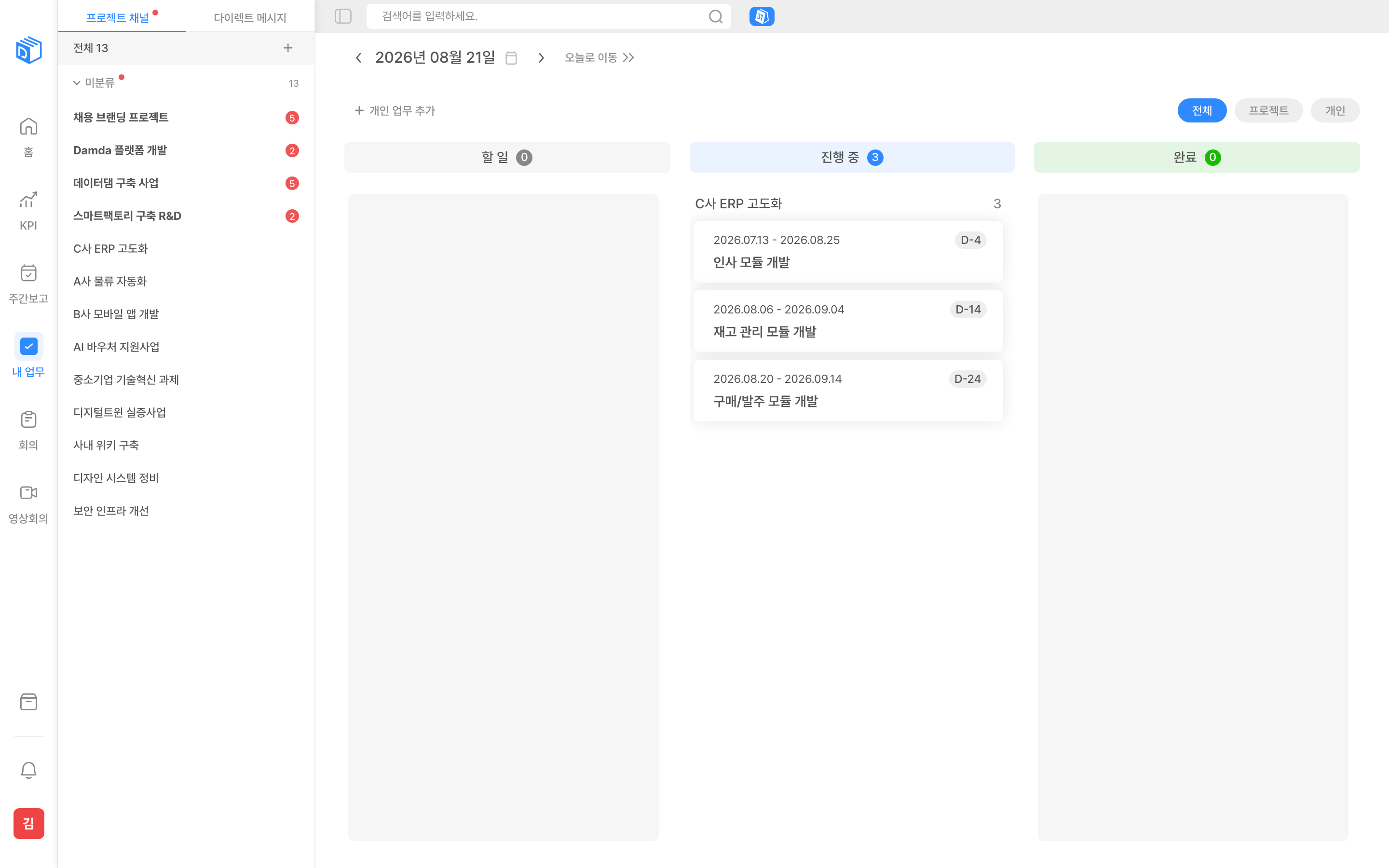
Channels and DMs
- One channel per project — nobody has to create it
- One-to-one and group DMs, plus a private space for notes to yourself
- Group channels into sections your own way — nobody organises them the same
- Unread counts and typing indicators show in the list
Messages
- Collapse replies into threads
- Emoji reactions and @mentions — mentions reach the inbox and push notifications
- Call everyone in a channel at once with @channel
- Post a poll as a message — multiple choice, anonymous, with a closing time
- Attach links to poll options, and edit them after posting
- Browse the files and images shared in each channel on their own
Finding things
- One search covers channels, tasks, projects, files, and messages together
- A separate search stays inside the channel you are reading
Notifications
- Turn notifications on and off per channel
- Configure in-app and push notifications separately by notification type
- Repeated notifications about the same thing collapse into one line
Docs & meeting notes
Meeting notes get written during the meeting
Several people edit the same document at once and the edits merge without conflicts. The edit history is kept on the server.
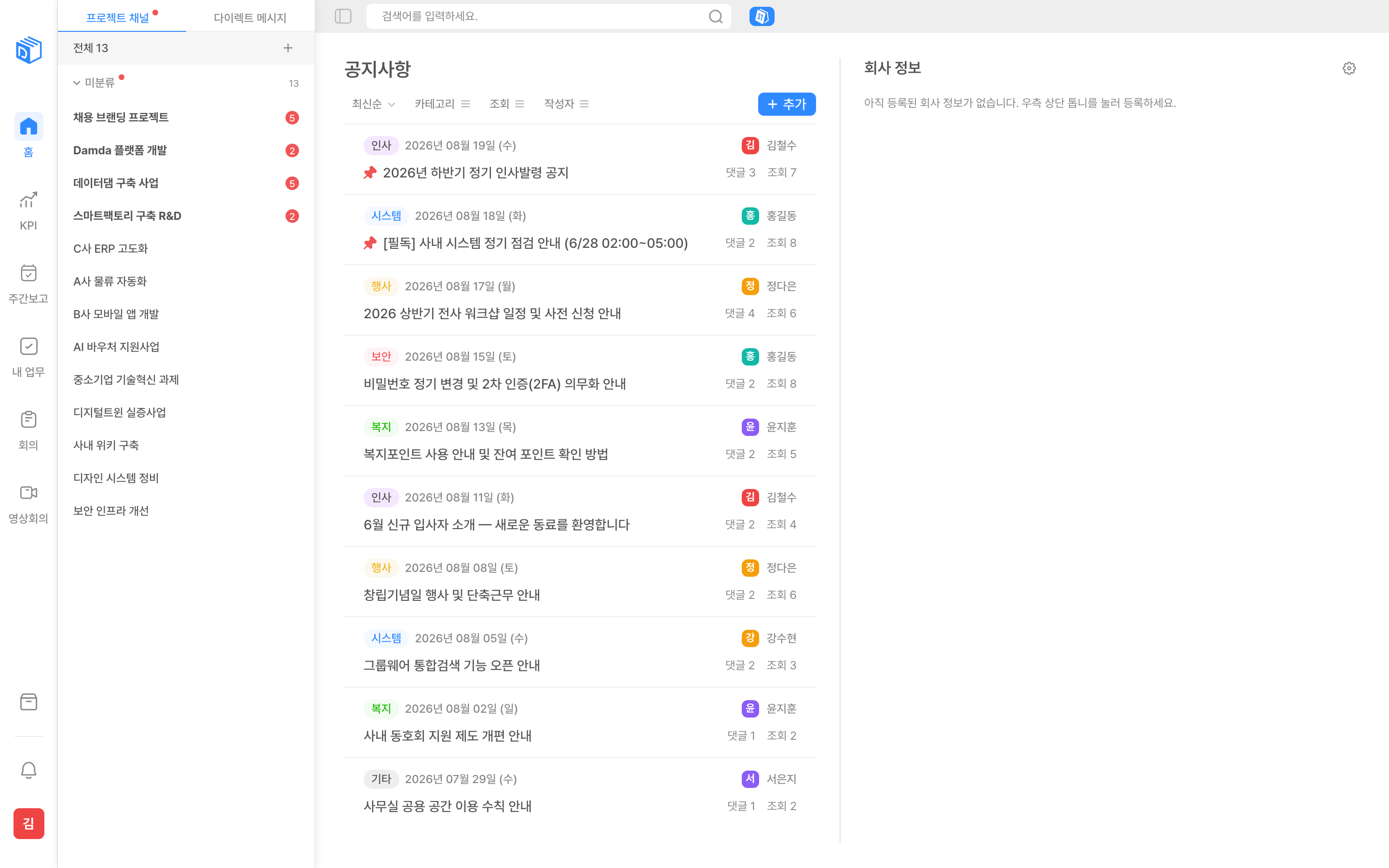
Block editor
- Insert blocks with a slash (/)
- Callouts, quotes, dividers, tables, checklists
- YouTube and external embeds, plus link cards that carry a title and thumbnail
- Split the page into two columns — a table on the left, the explanation on the right
- Numbered lists continue as 1.1. when you indent them — policies and procedures move across as they are
- Drop images, video, and files straight into the body
Real-time collaboration
- Edit one document together — the last person to save does not overwrite the rest
- Edits survive a dropped connection locally and merge when it comes back
Point-in-time view
- Open a document as it read at an earlier point
- Named checkpoints and per-day snapshots appear in one list
- Restore that point if you want it back — the restore is itself a version, so you can go forward again
Where a document body appears
- Tasks, projects, meeting notes, announcements, and personal to-dos each have one
- It is the same editor wherever it appears, so you learn it once
- Writing that belongs to nothing in particular goes in the wiki — same editor again
Templates
- Save the forms you reuse as templates
- The whole company uses them; only the author and admins can change them
- Templates are scoped by where they are used — meeting notes, tasks, announcements
KPIs
Reviews that ran in spreadsheets, moved into the product
Goals are set once and then frozen; inside the period only progress moves, in rounds. One screen shows who is at which stage.
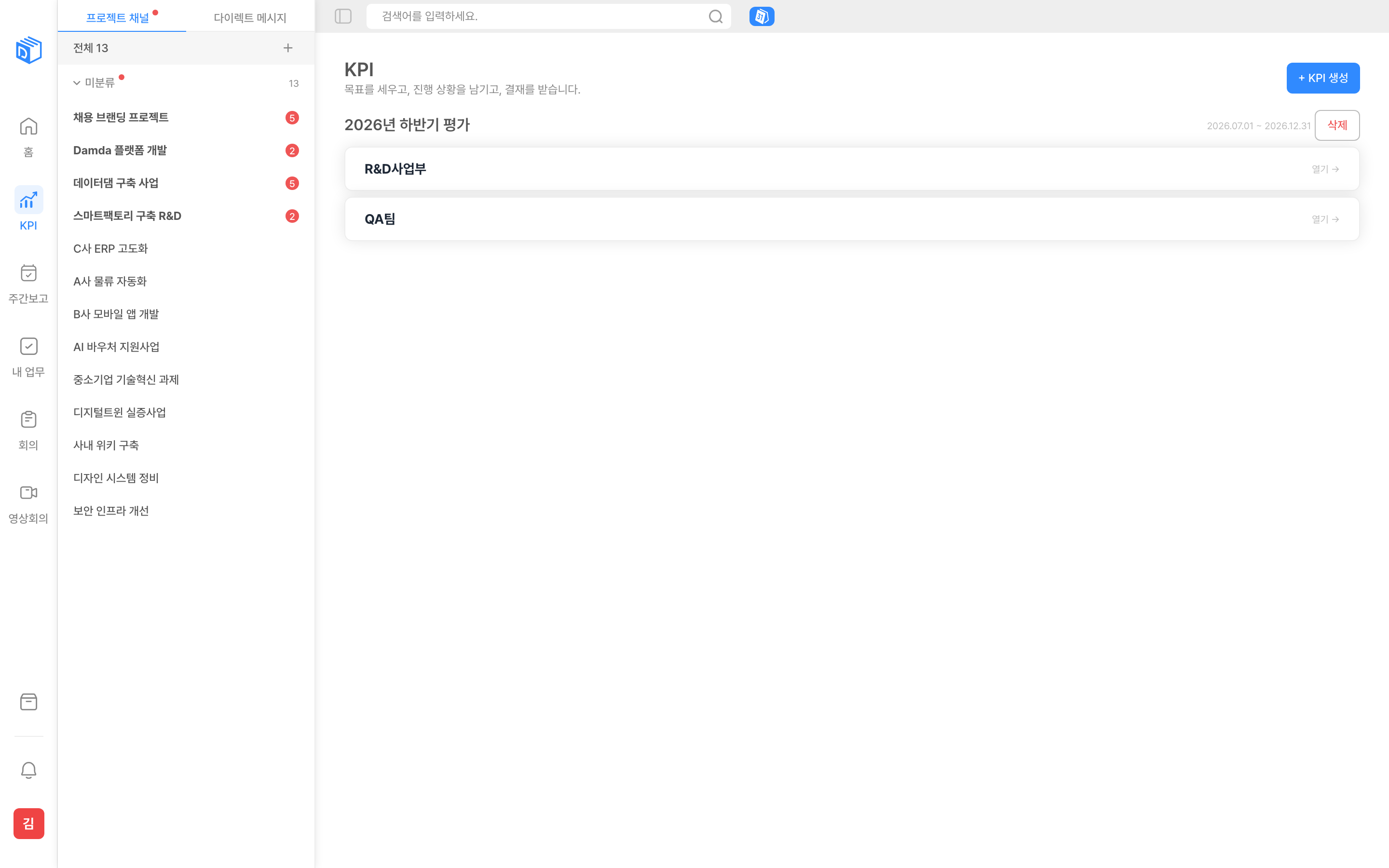
Cycles and roles
- Annual, half-year, or quarterly — periods are set by date, so any cadence works
- Each team has a final approver and a team manager
- The team manager starts as the team lead and can be changed from the admin screen
Entry — once only
- The team manager creates the KPI and starts it there and then — no waiting on an approver
- Submit the team KPI and the final approver confirms it
- Once the team KPI is confirmed, individual KPIs open by themselves — nobody opens them
- Members submit, the team manager confirms, and entry ends when everyone is confirmed
- Each item carries a category, task name, target, unit, and weight, plus high/medium/low criteria
- Weights are checked to total 100 at submission
Update rounds
- Check in several times within the period — the final approver opens a first, second, third round
- A round only takes progress figures and per-item comments
- Individuals submit, the team manager reviews, the final approver confirms
- Confirm one round and the next can be opened
- Set a deadline and writing locks once it passes; change the date and it reopens at once
What locks, and when
- When entry ends, targets, weights, and criteria freeze — a goal that shifts mid-period makes the review meaningless
- After that only progress moves, and only inside an open round
- Close the KPI and progress freezes too, leaving the dashboard
- Opening, submitting, confirming, and rejecting are all recorded with reasons
- A confirmed KPI cannot be deleted — losing the approval erases the basis of the review
Weekly reports
- Once a week, write what you did and what comes next, then submit
- Set a reporting line per team with first, second, and third-stage reviewers
- It moves on once the previous stage confirms — the order is the stage
- Submissions can be withdrawn, and only the person whose turn it is gets notified
Meetings, video & calendar
Schedules, notes, and calls in one flow
You do not have to create meeting notes before you can make a call. Use whichever piece you need.
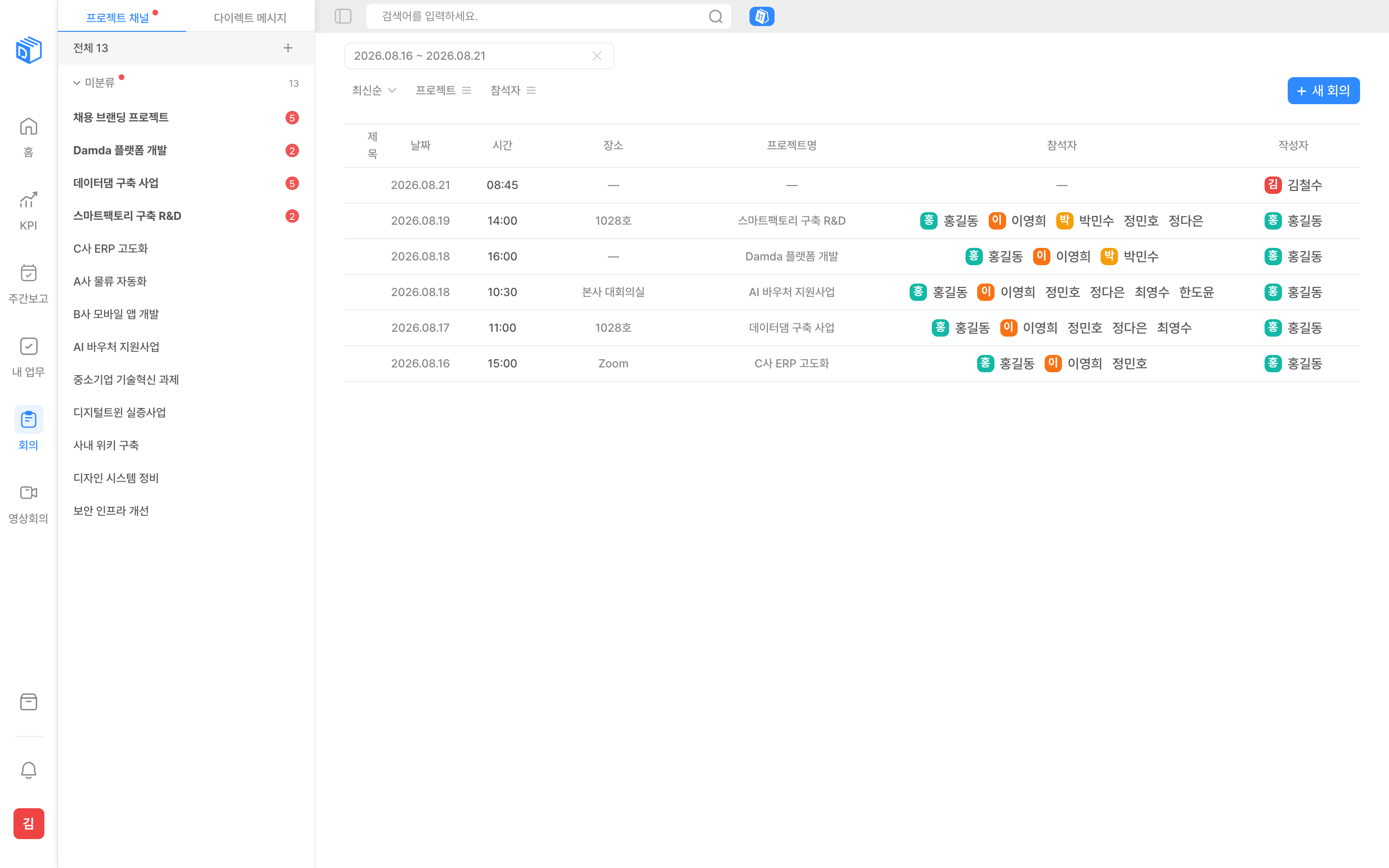
Meeting notes
- Manage internal and external attendees within the same meeting
- Record duration and location, and write the body in the block editor
- Link it to a project and it shows there too — linking is optional
Calendar
- Personal schedules, meetings, and company-wide events on one screen
- Month view and time view
- All-day events, time blocks, and multi-day ranges all work
- Set recurrence and an advance reminder (an hour before, for example)
My work
- See what to handle today on a Kanban board
- Pull in project tasks or create free-form notes
- Classify as to-do, meeting, or business trip so the calendar can tell them apart
AI meeting notes
- Record a meeting and it is transcribed, then summarised into a draft set of notes
- The draft lands in the meeting notes body, so you edit rather than write
- Speakers are labelled so you can see who said what — switch it off for sensitive meetings
- Recordings run up to 60 minutes each
- Audio is processed inside Korea (Seoul) and never leaves the country
- Included in Professional and Enterprise — 100 minutes per seat monthly, extended in 300-minute blocks
- The 30-day trial includes 500 minutes in total, so you can check it before you buy
- On-premise deployments can turn the feature off entirely
Video conferencing
- Invite external participants who have no account on the service
- Choose one of three — link only, link plus access code, or invited email addresses only
- Hold guests in a waiting room until the host admits them
- Revoke a link and every existing invitation dies at once. Each room has an expiry time
- Who joined and left, and when, is recorded
- Included in all four plans — what differs between them is the allowance, not the feature
Handa AI
BetaAn AI that knows Damda, resident on every screen
One thing separates it from a general chatbot — it reads your projects and tasks, and once you approve, it carries the work out inside Damda.
It knows the screen you are on
- In "summarise this project", the "this" is the project you have open
- Chips show what was loaded, and you can switch off anything you would rather not send
- Select part of a document body and ask about that alone
- The conversation survives a refresh and follows you between screens
Three things it does
- Look things up — "what did I work on last week"
- Pull things together — "summarise the team’s weekly reports"
- Carry things out — "reassign this task and move it to in progress"
- Answers carry source links, so you can click through to where it came from
Only what a person pressed
- It shows what it is about to change and waits for [Run]
- Approve a batch at once — one decision should not need three clicks
- Undo what it just created
- It holds no permissions of its own — it borrows yours, so it cannot see what you cannot
What is kept, and what is not
- Questions are not stored — only usage is counted
- It remembers facts rather than conversations, yours only, for 90 days
- Customer data does not leave its tenant
- Nothing is used to train a model
Which plans include it
- Professional and Enterprise
- The 30-day trial opens it too — not read-only, but carrying work out as well, around 100 queries
- Usage is counted in tokens and resets on each billing date
- It is in beta and opening in stages — we will show you the real screens on a call
Wiki & external connections
BetaWrite down how your company works, then let your AI read it
A home for documents that belong to nothing in particular. Connect that home to an outside AI such as Claude, and it starts answering as something that knows how you work.
Wiki
- Create a space and put pages in it — a home for documents that hang off no task or meeting
- The same editor as everywhere else, so collaboration, version history, and attachments come with it
- Split each space into read, write, and maintain
- Request access to a space you cannot enter
- Unified search and Handa AI read the wiki too
External connections
- Issue your own API key and attach an outside AI such as Claude to Damda
- Turn reading and writing on separately — wiki read, work read, Damda write
- Restrict which spaces each key can see
- A key is shown once when issued and never stored. Revoke it whenever you like
Instruction spaces
- Mark a space as one whose writing becomes instructions to the AI
- Only admins can edit it, and guests cannot see that it exists
- Editing the rules is editing what the AI does, so the permission is drawn tightly
Your company decides what is on
- The wiki and external connections are switched on separately — using an internal document tool and sending those documents to an outside AI are different decisions
- On-premise deployments can turn both off entirely
- Both are in beta and opening in stages
Web & apps
Open it in a browser, or keep it running as an app
The installed app is a thin shell around the deployed web app. Improvements shipped to the web reach the app the same day, and you see the same screen wherever you open it.
Desktop app
- Available for both macOS — Apple silicon and Intel — and Windows
- Signed builds: notarised by Apple on macOS, Azure Artifact Signing on Windows
- They install without a security warning and pass corporate IT policy (AppLocker, MDM)
- Installs into the user folder — no administrator rights needed
- Close the window and it stays in the tray, still receiving notifications
- New versions download and apply themselves
- Switch which company you connect to from the tray, for people who work across several
Mobile
- Add it to the home screen from the browser and it behaves like an app — no store install
- On mobile the interface switches to layouts built for conversations and file viewing
- Push notifications arrive even with the browser closed
- Video conferencing is not available on mobile — join from the desktop app or a browser
Where to get it
- Settings › Desktop app offers the installer matching the system you are on
- You can hand a browser session over to the app — chosen once, never asked again
Why Damda
Documents and conversations as good as the dedicated tools — approvals, reviews, and project management that those tools cannot do at all.
| Damda | Doc tools | Messengers | Project tools | |
|---|---|---|---|---|
| Block documents · real-time co-editing | Full support | Full support | Not available | Partial support |
| Project channels · DMs · threads | Full support | Not available | Full support | Partial support |
| Gantt · milestones · automatic progress | Full support | Partial support | Not available | Full support |
| KPI approval path (team→individual, checked in rounds) | Full support | Not available | Not available | Not available |
| Teams · team leads · member management | Full support | Not available | Partial support | Not available |
| Business trips · standard SI issue form | Full support | Not available | Not available | Partial support |
| BOM · budget · risk table templates | Full support | Partial support | Not available | Partial support |
| Video conferencing (external participants) | Full support | Not available | Full support | Not available |
| On-premise deployment | Full support | Not available | Not available | Partial support |
| Audit log · four permission levels | Full support | Partial support | Partial support | Partial support |
See Damda set up the way your team works
A 30-minute demo covers the real screens and how a rollout actually goes.